Transparency and Resolution: How to Convert PNGs to PDF Without Dark Backgrounds or Blurring
Converting PNG to PDF and getting black backgrounds or blurry text? Learn how to preserve transparency and resolution the right way.
You export a logo, a screenshot, or a design mockup as a PNG — clean transparent background, sharp edges — and the moment you convert it to PDF, that transparency turns into a solid black rectangle. Or the image that looked crisp on screen comes out soft and blurry once it's inside the document. Neither of these is random bad luck. Both come down to a specific, well-understood conflict between how PNGs store image data and how PDFs render it.
This matters more than it might seem, especially if you're submitting design assets, building a portfolio, or preparing a report full of screenshots and diagrams for people who expect it to look polished, not glitchy.
In this guide, you'll learn why PNG to PDF conversion sometimes ruins transparency, how to convert high resolution PNG to PDF without blurring, how to combine multiple PNGs into a single document, and what settings actually control whether your image comes out looking clean or comes out looking broken.
Why PNG Transparency Breaks During PDF Conversion
Here's the core technical conflict: PNG is one of the few common image formats that supports a true alpha channel — meaning individual pixels can be partially or fully transparent, not just opaque. That's why a PNG logo can sit cleanly on top of any background color without a visible box around it.
PDF, on the other hand, doesn't handle transparency the same way by default. Historically, many PDF-generation tools and older PDF versions render images against a solid background rather than preserving true per-pixel transparency, and when a converter doesn't explicitly handle the alpha channel, it often defaults that background to black. That's exactly why a transparent PNG background turns into a black rectangle in so many conversions — the converter is filling in a default background color instead of correctly interpreting "no color here."
Modern PDF specifications (PDF 1.4 and later) do support transparency, but support for it varies significantly between conversion tools, which is why this problem is still so common even though the underlying format has supported transparency for years.
Convert Transparent PNG to PDF Without Black Background
To avoid the black-background problem specifically, a few things help:
- Use a converter that explicitly supports alpha channel transparency, rather than one that simply flattens every image onto a default canvas. This is the single biggest factor in whether transparency survives conversion.
- Set a specific background color if transparency isn't supported. If your converter can't preserve true transparency, at minimum choose a white background rather than accepting whatever default the tool applies — white blends far more naturally into a document than black.
- Test with a small transparent image first before converting a large batch, since this is the kind of issue that's much easier to catch on one file than after 40 images have already been processed.
If you're regularly working with transparent PNGs — logos, icons, isolated product photos — it's worth confirming a converter handles this correctly once, rather than discovering the problem in a finished, submitted document.
How to Convert High Resolution PNG to PDF Without Blurring
Blurriness after conversion usually comes down to one of two causes: the converter is compressing or downsampling the image, or it's scaling the image up or down in a way that doesn't match its native resolution.
Check Compression Settings
Many free converters apply compression by default to keep output file sizes small, which can visibly soften image detail — particularly noticeable in text-heavy screenshots or fine linework. If sharpness matters more than file size, look for a converter that offers a "high quality" or lossless export option rather than accepting default compression.
Match Image Resolution to Page Size
A high-resolution PNG scaled down to fit a page will generally stay sharp, since you're working with more detail than the final size needs. The opposite — a lower-resolution image stretched up to fill a page — is where blurring becomes unavoidable, because the converter has to invent pixel detail that was never captured in the original file. If your source PNG is relatively low resolution, keeping the PDF output closer to the image's original dimensions avoids visible softness.
DPI and Print Quality
DPI (dots per inch) is a print-resolution measurement, not a screen one — a PNG's on-screen sharpness depends on its actual pixel dimensions relative to the display, not any DPI value stored in the file's metadata. That's why a PNG can look perfectly sharp on a monitor but turn out soft once printed: the pixel count that looked plenty dense on screen may fall well short of what a printer needs to render the same image cleanly on paper. For anything print-bound, starting with a PNG that has enough pixel dimensions to reach roughly 300 DPI at your intended print size produces a meaningfully sharper physical result than one optimized only for web viewing.
How to Convert Multiple PNG Images Into One PDF
Combining several PNGs into a single, properly ordered PDF follows a fairly standard process across most tools:
- Upload all the PNG files you want included, ideally reviewing them to confirm you have the right set before proceeding.
- Arrange them in the correct order. Drag-and-drop reordering, available in most converters, is worth double-checking before finalizing — fixing page order after the PDF is generated is more work than fixing it beforehand.
- Choose page sizing. Decide whether images should fill the page fully, keep their original aspect ratio with margins, or be standardized to Letter or A4 size across the whole document.
- Generate and review the final PDF, confirming transparency, resolution, and order all came through as expected before sharing or submitting it.
Combine PNG Files Into Single PDF Online Free
This entire workflow can be done in a browser without installing anything — upload your PNGs, arrange them, and download the finished PDF. This matters most when you're working from a shared or locked-down computer where installing new software isn't an option, or when you just need a quick result without setting up a desktop tool.
Batch Converting PNGs to PDF
For anyone regularly processing larger sets of images — a designer exporting a batch of mockups, a QA team archiving screenshots, someone digitizing a collection of scanned graphics — converting one file at a time isn't practical. A batch png to pdf converter free tool that accepts multiple uploads at once saves considerable time over doing this manually.
A few things worth checking in a batch tool:
- No forced watermark on the output. Some free tools add watermarks to push paid upgrades — look specifically for a free online png to pdf converter no watermark option if a clean, professional result matters.
- No signup requirement for quick, one-off batch jobs.
- Consistent settings applied across the whole batch, so you're not manually re-checking transparency or resolution settings on every single image.
Is It Safe to Convert PNGs to PDF Online?
If your images contain sensitive material — internal screenshots, confidential mockups, scanned documents — it's worth a quick check before uploading anything. Look for:
- Encrypted transfer (HTTPS), so files aren't exposed during upload or download.
- Automatic deletion after processing, rather than indefinite storage on a third-party server.
- A clear, accessible privacy policy explaining what happens to your uploaded files.
For most everyday design assets and screenshots this is a minor concern, but for anything genuinely confidential, it's a quick check worth making a habit.
Frequently Asked Questions
Why does my transparent PNG turn into a black background in PDF? This happens when the converter doesn't correctly interpret the PNG's alpha channel and defaults to filling transparent areas with black instead of preserving true transparency. Using a converter that explicitly supports alpha channel handling avoids this.
How do I combine multiple PNG images into one PDF file? Upload all your PNG files to an online converter, arrange them in the correct order using the reorder feature, then generate the PDF. Most tools handle this in under a minute regardless of how many images are included.
Will converting a high-resolution PNG to PDF make it blurry? Not if the converter avoids unnecessary compression and doesn't scale the image beyond its native resolution. Blurring typically happens when a lower-resolution image is stretched to fill a larger page than its original dimensions support.
Is there a free PNG to PDF converter without a watermark? Yes, several free tools convert PNGs to PDF without adding a watermark to the final document, though it's worth confirming this before converting a large or important batch, since not every free tier offers it.
Can I convert PNG to PDF on my phone without an app? Yes. Most online PNG to PDF converters work directly in a mobile browser, so there's no need to install a dedicated app — you can upload, convert, and download the finished PDF straight from your phone.
Get Clean, Print-Ready PDFs From Every PNG
Black backgrounds and blurry images aren't inevitable parts of converting PNG to PDF — they're the predictable result of a converter mishandling transparency or resolution, and both are fixable with the right tool and a couple of settings checked upfront.
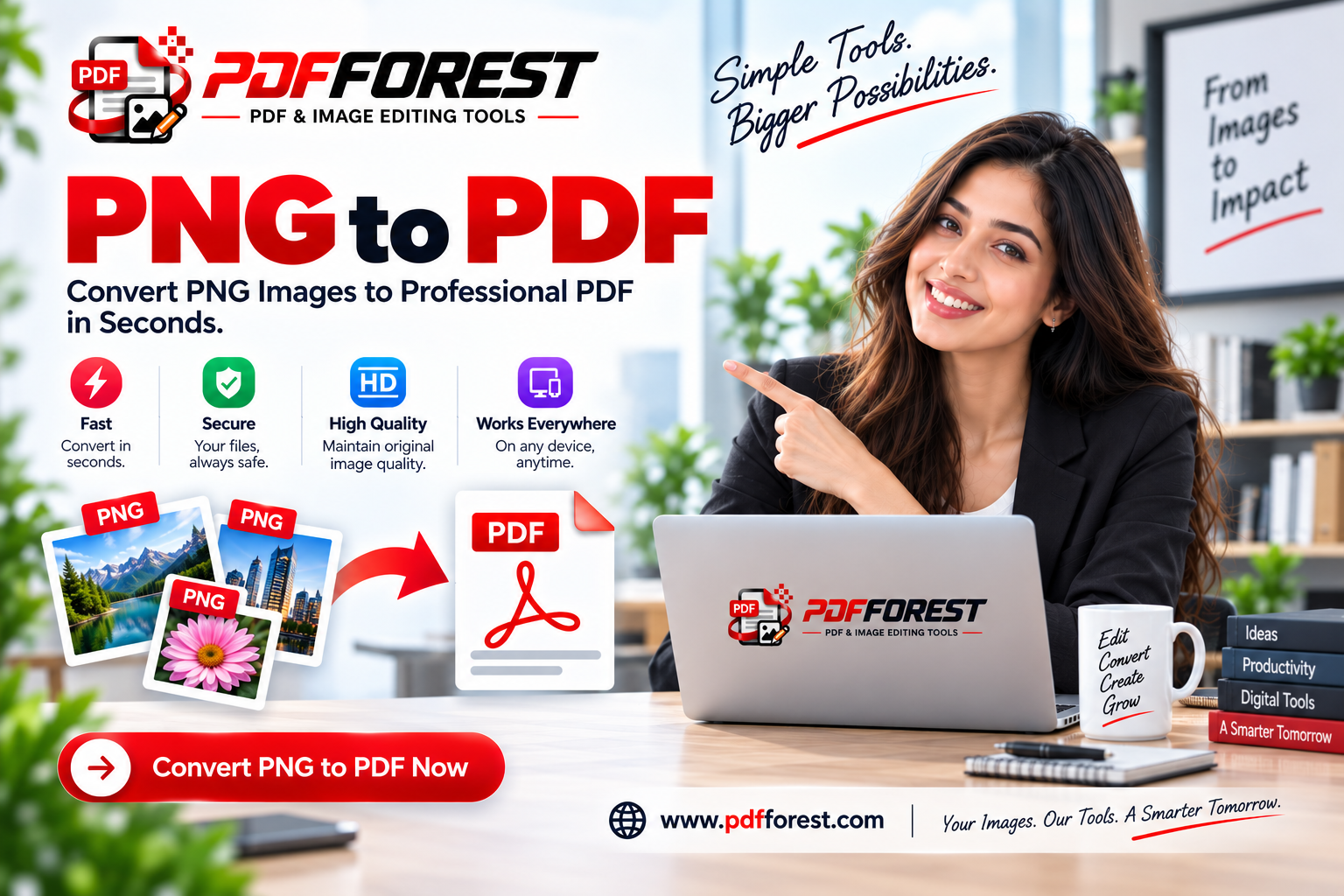
Ready to convert your PNGs the right way? Try PDF Forest's PNG to PDF converter — it preserves transparency, keeps your original resolution intact, and lets you combine multiple images into one clean PDF, no signup required.