Image Cropper Online Free: How to Crop Screenshots for Clean Image-to-Text Conversion
By Adesh Katariya | Updated 09 October 2026
Use an image cropper online free to trim screenshots, keep full resolution and get cleaner image-to-text results. Step-by-step guide with common fixes.
Last month I tried to pull the text out of a screenshot of a bank statement. The result was a mess. Half the output was browser tabs, a sidebar menu and a notification badge, and the numbers I actually needed were scrambled in the middle. The fix took ten seconds. I cropped the screenshot down to just the table, ran it again, and the text came out almost perfect.
That's the part nobody mentions about image-to-text tools. The conversion is only as clean as the picture you feed it, and the fastest way to clean up a picture is a good image cropper online free of charge. In this guide you'll learn how to crop to an exact size, make a circle crop for a profile photo, keep your resolution intact, and do all of it from a phone browser. Once your image is trimmed, you can drop it into a JPEG to text converter and get editable text in seconds.
Why You Should Crop Before Converting an Image to Text
Cropping and text conversion look like two separate jobs, but they're tightly linked. Get the first one wrong and the second one suffers.
What Text Recognition Does With Clutter
Optical character recognition (OCR) has no idea which part of your screenshot matters. It tries to read everything: menus, ads, watermarks, timestamps, that little chat bubble in the corner. Every extra element adds noise, and noise shows up as stray characters, merged lines and columns that jump around the page. A tight crop removes the guesswork.
The Resolution Trap
Here's the core technical conflict. You want a smaller frame, but every time you crop and save, some tools quietly re-compress the file. Save a JPEG over a JPEG a few times and you lose fine detail with each round. That detail is exactly what OCR uses to tell an O from a zero or an l from a 1. So the goal is simple: crop tightly, but export without extra compression or resizing.
How to Use an Image Cropper Online Free (Step by Step)
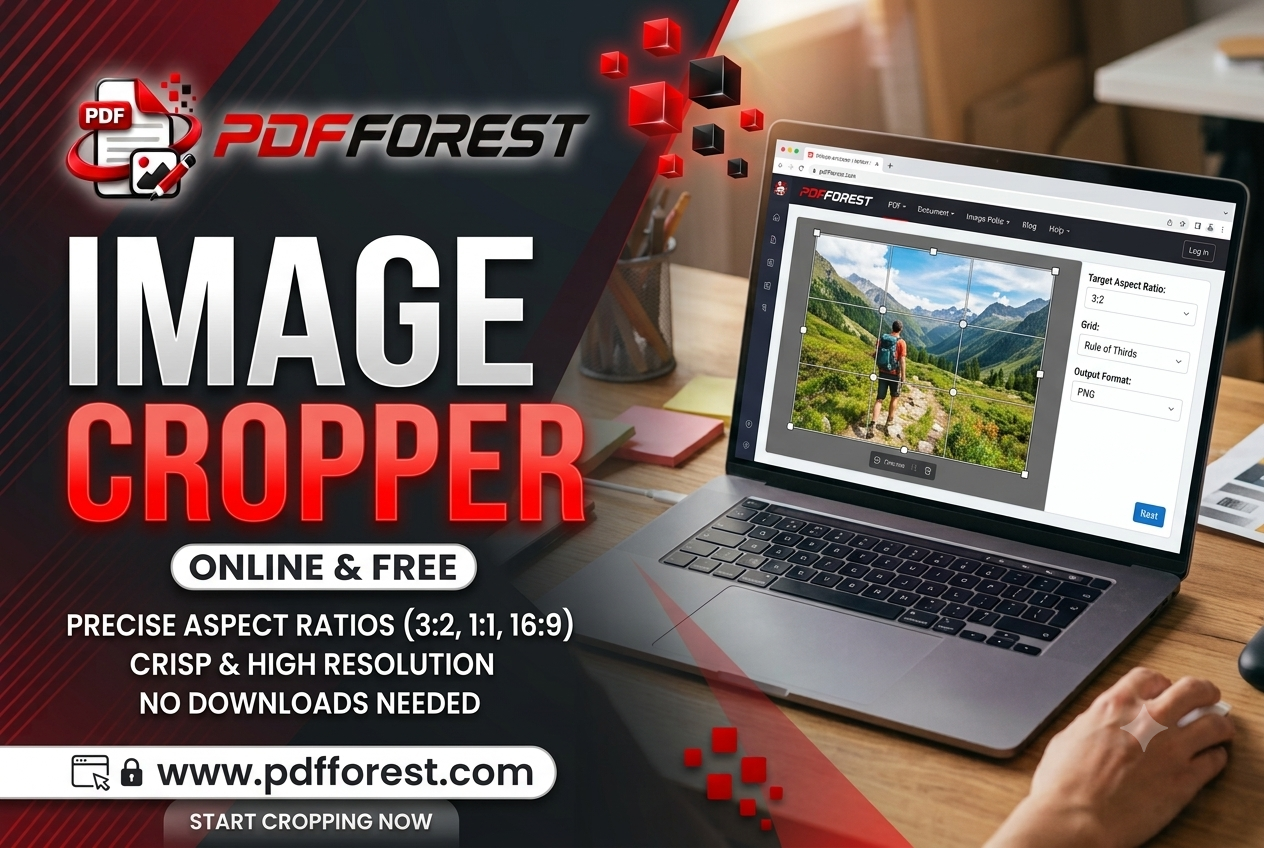
Quick answer: To crop an image online for free, upload your file to a browser-based cropper, drag the crop box around the part you want, set a ratio or pixel size if you need one, then download the result as a PNG to keep full quality.
- Open a free online cropper in any browser. No install is needed.
- Upload your image or drag it onto the page.
- Drag the corners of the crop box so it hugs the content you need.
- Pick freeform cropping, or lock a ratio such as 1:1 or 16:9.
- Preview the result, then download it as a PNG.
One habit that has saved me a lot of retakes: leave a small margin, roughly 10 pixels, around any text. Cutting too close clips the edges of letters, and then the converter misreads them.
Before you upload anything, check the download page for watermarks and sign-up walls. Plenty of tools advertise themselves as free and then add a logo to your export. A truly free cropper shows you the final file without asking for an account.
How to Crop a Photo to an Exact Pixel Size or 16:9 Ratio
Crop Photo to Exact Pixel Size
Lots of websites demand an exact size: a profile photo at 400 by 400, a banner at 1500 by 500, a passport-style image for an application. In most online croppers you type the width and height in pixels, and the crop box locks to that shape. Some common targets:
- Instagram square post: 1080 x 1080 pixels
- YouTube thumbnail: 1280 x 720 pixels
- Link preview (Open Graph) image: 1200 x 630 pixels
If your tool only crops by ratio, crop to the right ratio first and resize second. Doing it in that order stops your image from getting stretched. In India, many job and exam application portals ask for a specific pixel size plus a file under a set number of kilobytes. Always read the form's instructions, crop to the required dimensions, and if the file is still too heavy, lower the export quality slightly rather than shrinking the dimensions.
Crop Image to 16:9 Ratio Free Online
The 16:9 shape is the standard for blog featured images, video thumbnails and slide decks. Pick the 16:9 lock in your cropper and the box snaps into place. If you'd rather do the math yourself, multiply the width by 9 and divide by 16. A 1920-pixel-wide image should be 1080 pixels tall.
Keep your subject near the centre. Some platforms trim the edges when they display your image, and a face or headline sitting right at the border is the first thing to disappear.
Crop First, Then Convert: A Workflow That Actually Works
This is the routine I use whenever I need text out of an image, whether it's a screenshot of a PDF page, a photo of a printed receipt or a slide from a webinar.
- Crop to the text block. Remove toolbars, borders and anything that isn't words or numbers.
- Export as PNG. It keeps edges sharp, which helps recognition.
- Check the size. Small text under about 12 pixels tall tends to convert badly, so go back to a larger original if you can.
- Run the conversion. Upload the cropped file to a free JPEG to text converter and copy the editable text.
- Proofread the numbers. Even clean conversions can swap a 5 for an S, so give figures a quick look.
If you're converting several images, crop them all the same way. Consistent framing gives you consistent results, and it makes the proofreading step much faster.
How to Crop an Image Without Losing Resolution
Here's something that surprises people: cropping itself doesn't reduce quality. It simply removes pixels you don't want, and the ones that remain stay exactly as they were. What hurts quality is what happens around the crop.
- Re-compression. Saving as a low-quality JPEG throws away detail. Export as PNG, or use the highest JPEG quality setting.
- Resizing. Scaling an image up makes it blurry, because the tool is inventing pixels. Crop first and avoid enlarging.
- Cropping a copy of a copy. If you screenshot a screenshot, you're stacking quality loss. Always start from the original file.
- Browser zoom. Taking a screenshot while your browser is zoomed to something other than 100 percent can soften text. Reset the zoom first.
After you export, check the pixel dimensions of the new file. If your original was 3000 pixels wide and your crop covers half of it, you should see roughly 1500 pixels. If the number is much smaller, something resized your image along the way.
Circle Crops and Cropping on Your Phone Browser
How to Crop an Image Into a Circle for a Profile Picture Online
Most social platforms apply the circle mask themselves. That means the best approach is usually a square crop with your face centred, leaving a little space above your head. Upload that, and the platform does the rounding.
If you need a genuinely round image, for a website or a presentation, choose the circle shape in your cropper and export as PNG. PNG keeps the corners transparent. JPEG can't do that, so you'll end up with white or black corners around your circle.
Crop a Picture on Your Phone Browser Without an App
You don't need to install anything. Open a browser-based cropper in Chrome or Safari, tap to upload from your gallery, and drag the crop handles with your finger. Pinch to zoom for precision when you're trimming close to small text. Tap download, and the file lands in your Downloads folder or the Files app.
A small tip for long chat screenshots: crop to one section at a time instead of trying to convert the whole scroll in one go. Smaller, focused images give cleaner text.
Frequently Asked Questions
Is there an image cropper online free with no watermark?
Yes, several exist, but not every tool that claims to be free is. Check the preview and download step before you invest time. If a logo appears on the export or you're asked to create an account, try a different tool.
Does cropping reduce image quality?
Not by itself. Cropping removes pixels without altering the rest. Quality drops when the tool re-compresses the file or resizes it, so export as PNG and avoid scaling up.
What's the best file format for image-to-text conversion?
PNG is usually the safest choice because it keeps text edges sharp. A high-quality JPEG also works, as long as it hasn't been saved and re-saved many times.
Can I crop a photo on my phone without downloading an app?
Yes. Any modern phone browser can run an online cropper. Upload from your gallery, adjust the box, and download the result.
Should I crop before or after converting an image to text?
Before. Removing menus, borders and backgrounds gives the converter less to misread, and your output needs far less cleanup.
Conclusion: Crop Smart, Convert Clean
A clean conversion starts long before you hit the convert button. Trim the clutter, protect your resolution, export as PNG, and your text comes out far more accurate. The same few habits also help when you're sizing a profile picture, a 16:9 thumbnail or an exact-pixel upload for an application form.
Ready to try it? Crop your image with any free online cropper, then run it through the JPEG to text converter at PDFForest and see how much cleaner your results look.