Beyond Notepad: How to Convert Plain Text Files into Clean PDF Documents
Need to convert a plain text file into a proper document? Learn how to turn TXT and Notepad files into clean, readable PDFs in seconds.
A .txt file is about as basic as digital documents get — no fonts, no formatting, no page numbers, just raw characters on a blank background. That's exactly what makes it useful for quick notes, logs, or code snippets. It's also exactly why handing someone a .txt file when they're expecting a proper document tends to land wrong — no letterhead, no structure, nothing that signals "this was prepared for you" rather than dashed off in Notepad.
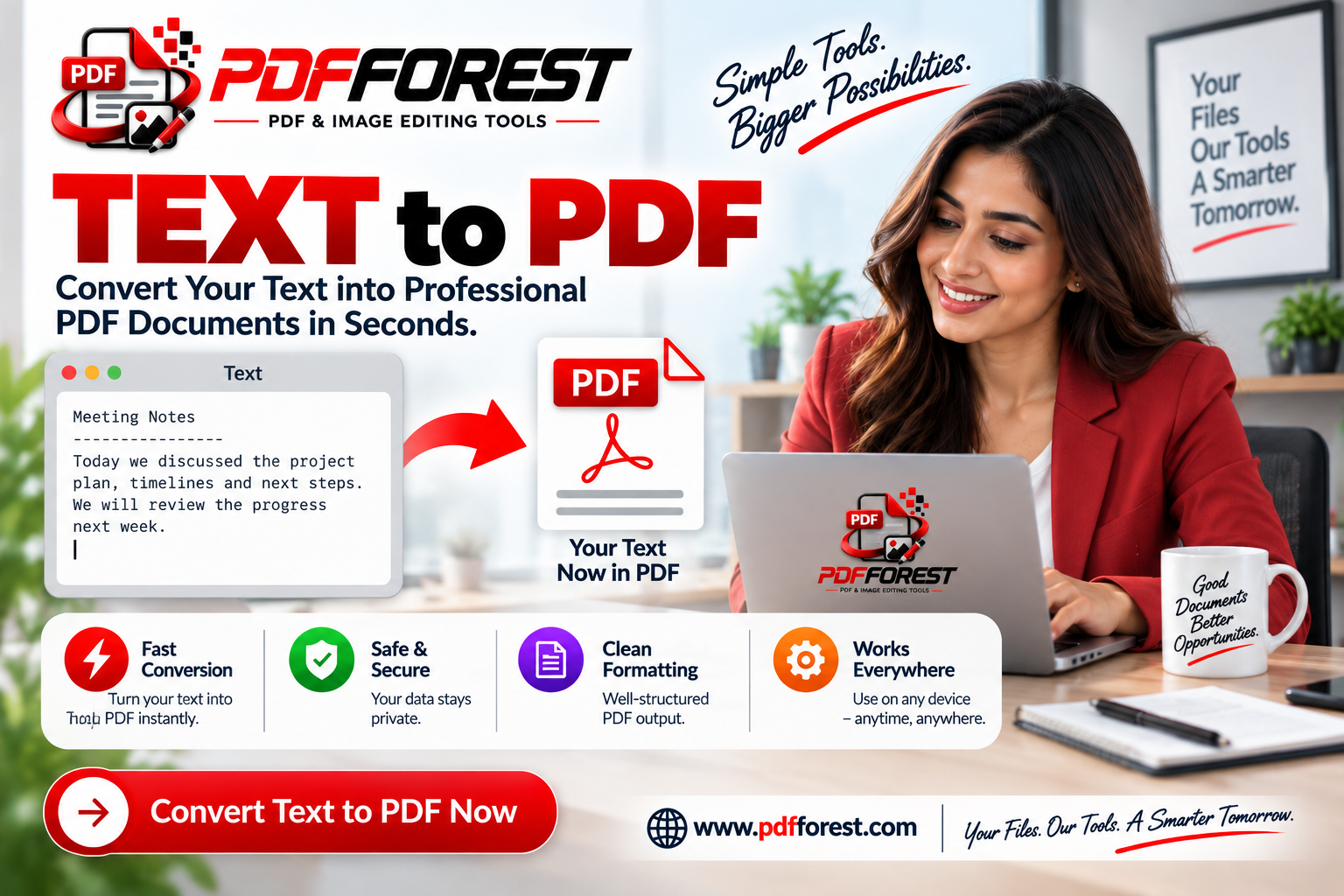
Converting that plain text into a PDF fixes this in about ten seconds, and it's a far more common need than people expect: meeting notes that need to go to a client, a changelog that has to ship with software, an old log file that needs archiving in a format people can actually search and read years later.
In this guide, you'll learn how to convert text to PDF cleanly, how to turn a Notepad file into a PDF with page numbers and basic formatting, how to convert text straight from your clipboard, and what actually causes a "successful" conversion to still come out looking broken.
Why Plain Text Files Need a Real Conversion Process
Here's the core conflict: a .txt file stores nothing but characters — no line-wrapping rules beyond what your specific text editor decides to show, no page boundaries, no font, no structure. A PDF is the opposite: a fixed-page format that expects defined margins, a specific font, and a clear sense of where one page ends and the next begins.
When you convert txt to pdf, the converter has to invent all of that missing structure from scratch. It has to decide: where do page breaks fall? What font and size represent the text? Should long lines wrap, or run off the page? None of this is specified in the original file, which is exactly why some converters produce a document that looks like a simple, clean page, while others produce something with awkward line breaks or oddly cramped margins.
This matters more than people expect for text files with intentional formatting — code with specific indentation, logs with consistent column spacing, or notes where line breaks carry meaning. A converter that doesn't respect the original line structure can turn a readable file into a jumbled one.
How to Convert a Notepad Text File to PDF
The general process for converting a Notepad or any plain .txt file into a PDF is straightforward across most tools:
- Upload the .txt file to a text to PDF converter, or open it directly if you're using a text editor with built-in export.
- Choose basic formatting options, such as font, font size, and page margins, if the tool offers them.
- Decide on page numbering and headers, if you want them included — useful for longer documents or anything meant to look like a finished report rather than a raw dump of notes.
- Generate and review the PDF, checking that line breaks and spacing came through the way you expected.
This works the same whether you're converting a short note or a lengthy document — the steps don't change, just the amount of content flowing across pages.
Convert Notepad File to PDF With Page Numbers
For anything longer than a page or two, page numbers make a real difference in usability, especially if the document is going to be printed or referenced later. Most text to PDF converters include this as a basic formatting option rather than something you need to add manually afterward — look for a "header/footer" or "page numbering" setting before you convert, since adding it after the fact usually means starting over.
Convert Plain Text to Formatted PDF Online
A completely plain, unformatted text dump works fine for internal notes, but for anything client-facing or meant to look polished, some light formatting goes a long way. A few things worth setting before converting:
- Choose a readable font. Default monospace fonts (common in code editors and terminal output) are great for code but can feel unpolished for general documents — a standard serif or sans-serif font usually reads better for prose-heavy text.
- Set reasonable margins. Text that runs edge-to-edge on a page looks cramped; standard document margins make even plain text feel more like an intentional document.
- Preserve intentional line breaks. If your text file uses line breaks to separate sections or list items, confirm the converter keeps those breaks intact rather than reflowing everything into solid paragraphs.
None of this requires actual document-editing software — it's just a matter of choosing the right settings in the converter itself, which most free tools support even without a paid plan.
Convert Text Clipboard to PDF Document
Sometimes you don't have a saved .txt file at all — you've just got a block of copied text sitting in your clipboard from an email, a chat, or a webpage, and you want it as a standalone PDF. For this convert text clipboard to pdf document workflow:
- Copy the text you want converted, exactly as you'd copy anything else.
- Paste it directly into a text to PDF converter's input field, rather than saving it as a file first — most online tools accept pasted text alongside file uploads.
- Apply the same formatting checks — font, margins, line breaks — before generating the PDF.
This is a genuinely useful shortcut for anyone who needs a quick PDF from something that was never a file in the first place, without the extra step of creating and saving a .txt file just to immediately convert it.
How to Save a TXT File as a Readable PDF Without Breaking Formatting
A common frustration: a plain text conversion technically works, but the result is hard to read — lines wrap at odd points, or a document that had clear visual structure in a text editor comes out as one dense block.
A few fixes:
- Check line-wrapping behavior. Some text files use "hard wraps" — an actual newline character inserted at a fixed column width — while others rely on "soft wraps," where the viewer reflows text dynamically with no newline character present at all. If your converter doesn't detect which one your file uses, long lines can either wrap awkwardly or run off the page edge.
- Watch for encoding issues. Text files saved with different character encodings can display incorrectly if the converter assumes the wrong one — this shows up as garbled or missing characters, especially with special characters, accented letters, or non-English text. Files saved as UTF-8 tend to convert most reliably across tools.
- Preview before finalizing, especially for anything with intentional formatting like code, tables built from spaces, or numbered lists, since these are the most likely to look correct on screen but shift once converted.
Batch Converting Multiple TXT Files to PDF
If you're dealing with a folder full of text files — old notes, exported logs, a batch of saved emails — converting each one individually isn't realistic. A batch convert txt files to pdf free tool that accepts multiple uploads at once handles this far more efficiently.
A few things worth checking in a batch tool:
- Consistent formatting applied across every file, so you're not manually setting margins and fonts on each document individually.
- Original file names preserved in the output, so a batch of 50 files doesn't come back as an unlabeled mess.
- No hard cap on file count, particularly for genuinely large batches like an archive of old logs or notes.
Frequently Asked Questions
How do I convert a plain text file to PDF for free? Upload the .txt file to an online text to PDF converter, choose basic formatting options like font and margins if available, and generate the document. Most free tools complete this in seconds without requiring a signup.
Can I add page numbers when converting a text file to PDF? Yes, most text to PDF converters include page numbering as a built-in formatting option. It's worth selecting this before converting, since adding page numbers to an already-generated PDF usually requires a separate editing step.
Why does my converted PDF have strange line breaks? This usually happens when the converter misreads how the original text file handles line wrapping, or when there's a character encoding mismatch. Saving the source file as UTF-8 and checking the converter's line-wrap handling generally resolves this.
Can I convert text directly from my clipboard without saving a file first? Yes. Most online text to PDF converters let you paste text directly into an input field rather than requiring a saved file, which is faster if the text originated somewhere other than a document you created yourself.
Is there a way to batch convert multiple TXT files to PDF at once? Yes, several free tools support uploading multiple .txt files simultaneously and returning individual PDFs for each, which is significantly faster than converting files one at a time for larger batches.
Turn Your Notes Into Documents Worth Sharing
A plain text file gets the words down, but it rarely looks like something meant to be read by someone else. Converting it into a properly formatted PDF — with margins, consistent fonts, and page numbers where they matter — takes almost no extra effort and makes a real difference in how the finished document comes across.
Ready to turn your text file into a clean PDF? Try PDF Forest's Text to PDF converter — paste text directly or upload a file, adjust basic formatting, and download a polished document in seconds, no signup required.