Add Page Numbers to PDF Online Free – Number PDF Pages Easily with PDFFOREST
Add Page Numbers to PDF Online Free – Number PDF Pages Easily with PDFFOREST
Have you ever opened a long PDF and realized there are no page numbers?
It may seem like a small detail, but once a document grows to 20, 50, or 100 pages, finding the right page becomes frustrating. It becomes even more difficult when you're sharing the PDF with someone and need to say, “Please check the section somewhere near the middle.”
Page numbers solve this simple problem.
With the Add Page Numbers to PDF Online Free tool from PDFFOREST, you can organize your PDF pages without manually editing every page or installing complicated PDF software.
Whether you're working with an office report, project, assignment, business proposal, ebook, study material, or another multi-page document, adding page numbers makes the PDF easier to read, reference, print, and share.
Use the to get started.
Why Add Page Numbers to a PDF?
Imagine receiving a 70-page business report without page numbers.
During a discussion, someone says:
“Look at the sales chart on page 34.”
Without numbering, finding that page becomes unnecessarily difficult.
Now imagine the same document with clearly numbered pages. Everyone can immediately jump to the correct section.
That's why PDF page numbering is useful for much more than appearance. It gives a document structure.
Page numbers are especially helpful for:
- Business reports and presentations
- School and college assignments
- Research papers
- Project reports
- Legal documents
- Training manuals
- Ebooks
- Product catalogues
- Proposals and quotations
- Study notes
- Instruction manuals
If you've already created your PDF but forgot the numbering, you don't necessarily need to return to the original Word or other source document. You can simply add page numbers to the PDF online.
How to Add Page Numbers to PDF Online Free
PDFFOREST is designed to make common PDF tasks straightforward.
You don't need to be a PDF expert. The basic process is simple:
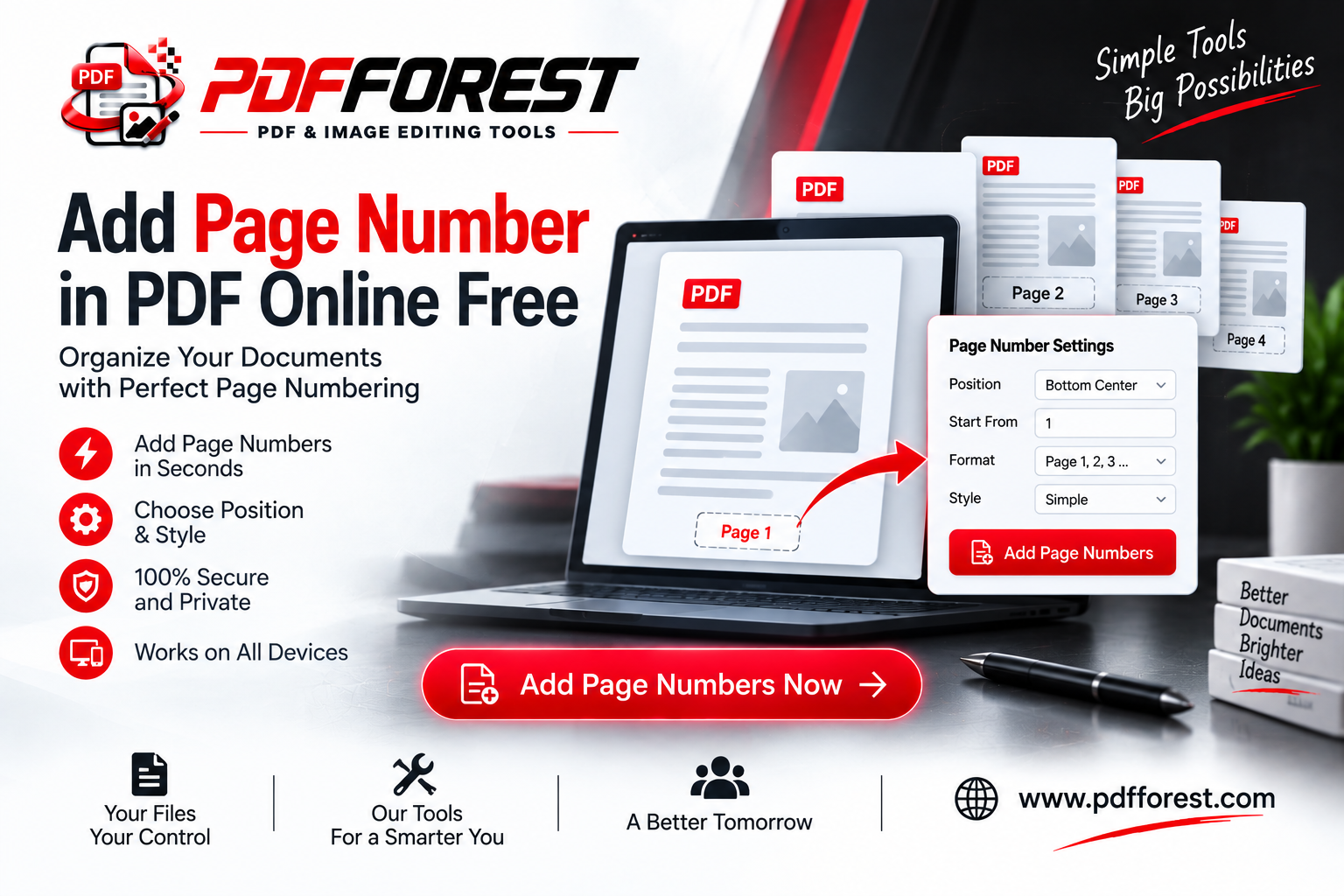
Step 1: Upload your PDF
Open the and select the PDF document you want to number.
Step 2: Choose your page-number settings
Select the available numbering options according to how you want your document to appear.
For example, you may want your page numbers positioned consistently at the bottom of each page.
Step 3: Add the page numbers
Once your preferences are ready, process the PDF and let the tool insert the numbering.
Step 4: Download the numbered PDF
Download the finished document and check the pages before sharing, printing, or storing it.
That's it.
Instead of manually modifying dozens of pages, an online PDF page number tool can handle the repetitive work for you.
Add Page Numbers Without Installing Software
One of the biggest advantages of an online PDF tool is convenience.
Traditional desktop PDF software may require installation, updates, account creation, or paid subscriptions. That's unnecessary when you only need to perform a quick task such as numbering a document.
With an online tool, you can open your browser, upload the document, make the required change, and download the result.
This can be particularly useful when you're working away from your normal computer.
For example, perhaps you're using a laptop at work and suddenly need to number a PDF before emailing it to a client. Instead of searching for software and installing another application, you can open the directly in your browser.
Make Long PDF Documents Easier to Navigate
Page numbering becomes increasingly valuable as documents get longer.
A three-page PDF might not need numbers. A 100-page PDF is a different story.
Consider an annual report containing:
- Company overview
- Management commentary
- Financial information
- Sales reports
- Charts
- Product information
- Appendices
Without page numbers, referring to a specific chart or paragraph can become awkward.
After you add page numbers to PDF, readers can quickly locate information and communicate more clearly.
Instead of saying:
“Look at the chart after the financial section.”
You can simply say:
“See page 42.”
Small change. Much better document.
Useful for Students and Teachers
Students regularly work with PDF files.
Assignments, project reports, dissertations, research papers, presentations, notes, and ebooks are frequently submitted or shared as PDFs.
Adding page numbers makes these documents look cleaner and easier to review.
Teachers can also benefit when distributing study materials. If students have the same numbered PDF, classroom references become much easier.
For example:
“Read pages 15–20 before tomorrow's class.”
Everyone immediately knows which section to read.
So if you're preparing academic material, using an add page numbers to PDF free tool can be a simple final step before submitting or sharing your document.
Useful for Business Documents
Professional documents should be easy to navigate.
Suppose you're sending a 40-page proposal to a potential client. During a phone call, you want to discuss the pricing table.
A numbered PDF allows you to say:
“Please open page 31.”
This is far more professional than asking the client to scroll through the document looking for a particular table.
Page numbering is useful for business documents such as proposals, reports, presentations, quotations, company profiles, manuals and internal documents.
Before sending an important document, open the and make sure the document is properly organized.
Add Numbers After Combining PDF Files
Here's another common situation.
You have five separate PDF documents:
Cover.pdf
Introduction.pdf
Report.pdf
Charts.pdf
Appendix.pdf
You combine them into one large PDF.
The pages may now be in the correct order, but they don't necessarily have consistent numbering.
This is an ideal time to insert page numbers in the PDF.
A practical workflow is:
Merge PDFs → Check page order → Add page numbers → Download final PDF
This gives you a much more organized final document.
Where Should PDF Page Numbers Appear?
For most documents, simplicity works best.
Common locations include the bottom center, bottom right, top center, and top right.
For reports, ebooks and academic documents, the bottom center is often a clean and familiar choice. Business documents may also use bottom-right numbering.
The best position ultimately depends on the layout of your document.
Avoid placing page numbers over existing text, images, logos, signatures, footers, or other important content.
After processing your file, quickly review several pages to make sure the numbers appear clearly.
Why Use PDFFOREST for PDF Page Numbering?
PDFFOREST is built around a straightforward idea: common PDF and image tasks shouldn't require complicated software.
Instead of using one application for conversion, another for compression and another for document organization, you can access multiple tools from one website.
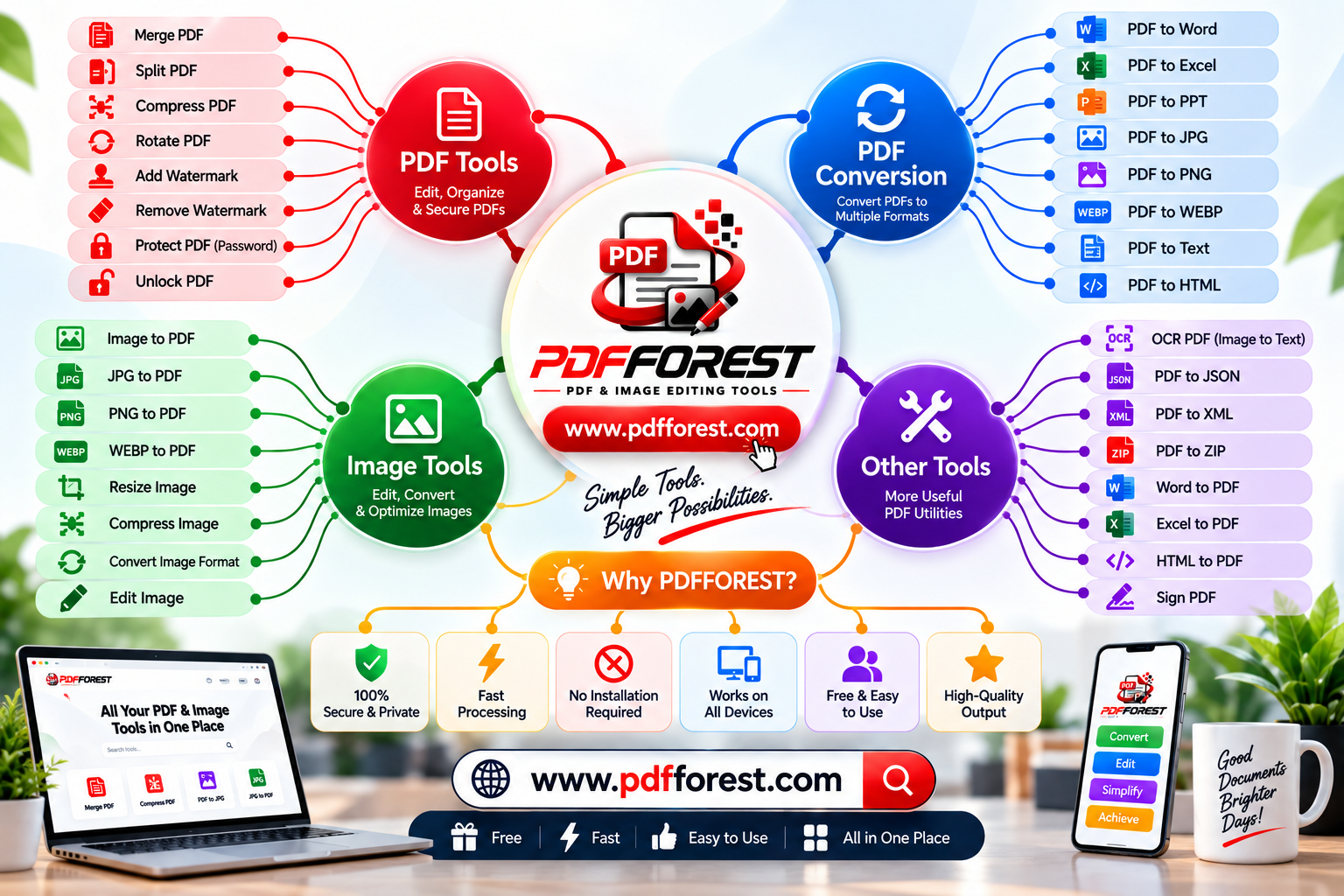
PDFFOREST includes tools for tasks such as:
Compress PDF • Merge PDF • Split PDF • Rotate PDF • Remove PDF Pages • Extract PDF Pages • Add Page Numbers • Add Watermark • Convert PDF • PDF Signing • Image Compression • Image Resizing
This is particularly convenient when your workflow requires several operations.
For example:
Merge PDF → Remove unwanted pages → Rotate incorrect pages → Add page numbers → Compress PDF
You can perform the different stages using the appropriate PDFFOREST tools rather than repeatedly searching for another website.
Visit to explore the available PDF and image tools.
Tips Before Numbering Your PDF
A little preparation can save you from having to process the document twice.
First, make sure your pages are already in the correct order. If the order is wrong, fix that before adding numbers.
Remove unnecessary pages as well. Otherwise, deleting a page afterward could disrupt your intended numbering.
You should also rotate any pages that are sideways or upside down before creating the final version.
A good workflow is:
Organize → Remove → Rotate → Number → Compress → Share
Finally, always open the downloaded document and check a few pages, particularly the beginning and end.
A Small Feature That Makes a Big Difference
Adding page numbers isn't the most exciting part of creating a document.
But it's one of those details people notice when it's missing.
A well-numbered PDF is easier to read, easier to discuss, easier to print and easier to navigate. It can also make reports, assignments, manuals and business documents feel more polished.
And you shouldn't have to manually edit every page just to achieve that.
If your PDF is ready but the page numbers are missing, use the to organize your document quickly.
Add Page Numbers to Your PDF Now
Give your PDF a clear structure before you send it.
Upload → Choose numbering → Process → Download.
Simple tools. Better organized documents.